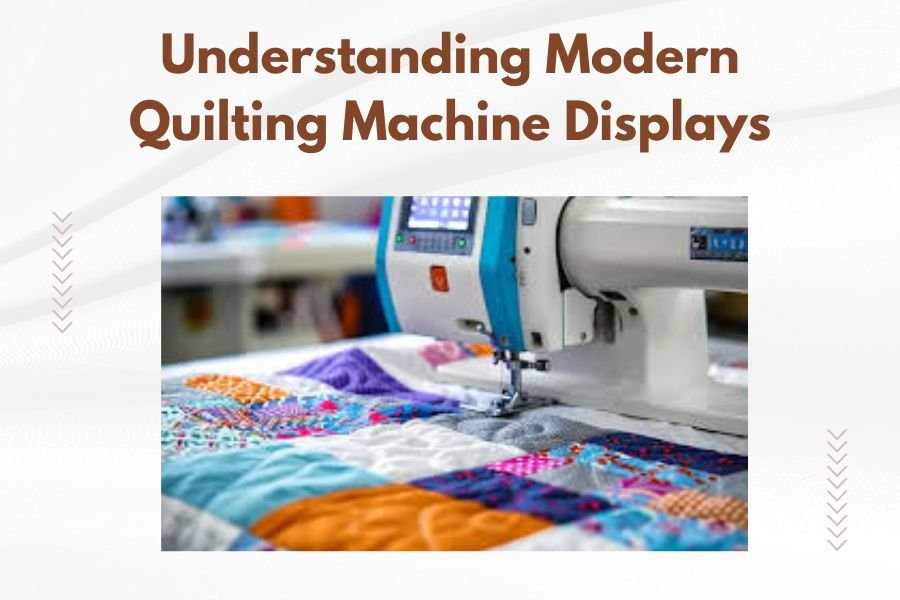
Modern quilting machine displays feature LCD or touchscreen interfaces that show stitch patterns, settings, and machine status information in real-time.
Understanding quilting machine displays helps you navigate features, adjust settings, and troubleshoot problems more easily during your sewing projects.
Types of Modern Quilting Machine Displays
Your quilting machine display serves as the control center for your entire sewing experience. Most modern machines come with one of three main display types.
Basic LCD Screens
Basic LCD displays show simple text and numbers. You’ll see stitch length, width, and selected pattern numbers. These screens work well for straightforward quilting tasks.
The text appears in clear, easy-to-read fonts. Most basic displays include backlighting so you can see information in dim light.
Color LCD Displays
Color LCD screens offer more visual information than basic displays. You can see actual stitch patterns, not just numbers. Many show threading diagrams and step-by-step setup guides.
These displays often include multiple menu levels. You navigate using buttons around the screen edges.
Full Touchscreen Interfaces
Touchscreen displays work like tablet computers. You tap icons, swipe between screens, and drag elements around. Many quilters find these most intuitive to use.
High-end touchscreens show detailed stitch previews. Some even display fabric colors so you can visualize your finished project.
Essential Display Icons and Symbols
Every quilting machine uses standard symbols that appear on displays. Learning these icons saves time and reduces confusion.
Stitch Control Icons
The start/stop icon usually looks like a play button triangle. A pause symbol appears as two vertical lines. The needle position icon shows whether your needle stops up or down.
Speed and Tension Symbols
Speed controls often appear as rabbit and turtle icons. Fast equals rabbit, slow equals turtle. Thread tension shows as numbered dials or plus/minus symbols.
Threading and Maintenance Alerts
Your machine displays warning icons when something needs attention. A spool symbol means check your thread. A lightbulb icon suggests changing the needle light.
Oil drop symbols remind you about maintenance schedules. Some machines track stitch counts and alert you automatically.
Navigation Features on Different Display Types
How you move around your machine’s menus depends on your display type. Each system has its own logic.
Button-Based Navigation
Machines with LCD screens use physical buttons for navigation. Arrow keys move between options. Enter or OK buttons confirm selections.
Most systems group related functions together. Stitch selection, machine settings, and maintenance menus stay separate.
Touch Navigation Methods
Touchscreen machines respond to finger taps and swipes. Main menus appear as large icons. Sub-menus open when you tap category buttons.
Many touchscreens include back buttons and home icons. These help you return to main menus quickly.
Gesture Controls
Advanced touchscreens recognize swiping gestures. Swipe left or right to browse stitch patterns. Pinch to zoom in on detailed pattern views.
Common Display Settings You Can Adjust
Most modern quilting machines let you customize display appearance and behavior. These adjustments improve your sewing experience.
Brightness and Contrast
Adjust screen brightness to match your sewing room lighting. Bright rooms need higher brightness settings. Dim lighting works better with lower brightness.
Contrast settings help text appear sharper. If letters look fuzzy, try adjusting contrast first.
Language Options
Many machines offer multiple language choices. You’ll find this setting in the main setup menu. Popular options include English, Spanish, French, and German.
Sound and Alert Settings
Your machine can beep when operations complete or problems occur. Turn sounds off for quiet sewing sessions. Keep alerts on to catch threading problems early.
Volume Controls
Separate volume controls often exist for button beeps and error alerts. You might want quiet button sounds but loud error warnings.
Reading Stitch Information on Your Display
Your display shows detailed information about selected stitches. Understanding this data helps you choose the right settings.
Stitch Dimensions
Length measurements appear in millimeters. Width shows the side-to-side stitch movement. Density indicates how close stitches sit together.
Most machines let you adjust these values. Longer stitches work well for basting. Shorter, denser stitches create stronger seams.
Recommended Thread and Needle Types
Advanced displays suggest appropriate thread weights and needle sizes. Delicate fabrics need fine needles and lightweight thread. Heavy materials require sturdy needles and strong thread.
| Fabric Type | Needle Size | Thread Weight | Stitch Length |
|---|---|---|---|
| Cotton quilting fabric | 80/12 – 90/14 | 40-50 weight | 2.5-3.0 mm |
| Silk and delicates | 70/10 | 60-80 weight | 2.0-2.5 mm |
| Denim and canvas | 100/16 – 110/18 | 30-40 weight | 3.0-3.5 mm |
Troubleshooting Display Problems
Display issues can disrupt your quilting projects. Most problems have simple solutions you can try at home.
Blank or Dark Screens
Check power connections first. Make sure your machine plugs securely into the wall outlet. Look for loose cables between the display and main unit.
Try adjusting brightness settings if you see faint images. The screen might be set too dark to see clearly.
Frozen or Unresponsive Displays
Turn your machine off and wait thirty seconds. Turn it back on to reset the system. This fixes many temporary software glitches.
Clean touchscreens with appropriate cleaning solutions. Dirty screens sometimes ignore touch commands.
When to Contact Service
Call for professional help if problems persist after basic troubleshooting. Cracked screens need replacement. Internal connection problems require technical expertise.
Advanced Display Features
High-end quilting machines include sophisticated display capabilities that enhance your creative possibilities.
Pattern Editing and Customization
Some displays let you modify built-in stitch patterns. You can adjust curves, add elements, or combine multiple patterns into custom designs.
Touch-based editing feels natural and intuitive. Drag pattern elements around the screen. Resize components with pinch gestures.
Project Management Tools
Advanced machines track your quilting projects through display interfaces. Save pattern combinations for future use. Name projects so you can find them later.
Progress Tracking
Some displays show completion percentages for large quilting projects. You can pause projects and resume exactly where you stopped.
Tutorial and Help Systems
Built-in help systems provide guidance without leaving your machine. Video tutorials play directly on larger displays. Step-by-step photos guide you through complex procedures.
Maintaining Your Display for Longevity
Proper care keeps your quilting machine display working smoothly for years. Simple maintenance prevents expensive repairs.
Cleaning Techniques
Use microfiber cloths for regular cleaning. Avoid paper towels that can scratch screen surfaces. Turn off your machine before cleaning to prevent accidental button presses.
For touchscreens, use cleaners designed for electronic displays. Never spray liquid directly on screens. Apply cleaner to cloths first.
Protecting from Damage
Keep your sewing area free from thread clippings and fabric dust. These particles can accumulate around display edges and cause problems.
Cover your machine when not in use. Dust covers protect displays from environmental damage.
Temperature and Humidity Considerations
Extreme temperatures affect display performance. Avoid placing machines near heating vents or in unheated rooms. High humidity can cause internal condensation problems.
Choosing Machines Based on Display Features
Your display preferences should influence machine selection. Different quilters need different interface styles.
Beginner-Friendly Options
New quilters often prefer simple LCD displays with clear labeling. Too many options can feel overwhelming when you’re learning basic techniques.
Look for machines with intuitive button layouts. Physical buttons provide tactile feedback that helps beginners learn machine locations.
Advanced User Requirements
Experienced quilters benefit from feature-rich touchscreen displays. Pattern editing capabilities and project management tools support complex creative work.
Large screens make detailed pattern work easier. High resolution displays show fine details clearly.
Future Trends in Quilting Machine Displays
Display technology continues advancing rapidly. Understanding trends helps you make informed purchasing decisions.
Larger Screen Sizes
Manufacturers keep increasing display sizes. Larger screens provide more workspace for pattern editing and better visibility for aging eyes.
Improved Touch Sensitivity
Newer touchscreens respond more accurately to light touches. Multi-touch capabilities enable more sophisticated gesture controls.
Integration with Mobile Devices
Some machines now connect to smartphones and tablets. You can design patterns on mobile devices and transfer them to your machine wirelessly.
Conclusion
Understanding your quilting machine display opens up a world of creative possibilities. Whether you prefer simple LCD screens or advanced touchscreen interfaces, knowing how to navigate and customize your display improves your quilting experience. Take time to explore all available features and adjust settings to match your preferences. Regular maintenance keeps your display functioning properly for years of enjoyable quilting. Remember that the best display is one that feels comfortable and intuitive for your specific needs and skill level.
How do I reset my quilting machine display if it freezes?
Turn off your machine completely and wait 30 seconds before turning it back on. This clears temporary memory issues that cause freezing. If problems continue, check your manual for a factory reset procedure or contact customer service.
Can I upgrade my machine’s display to a newer version?
Most quilting machine displays cannot be upgraded separately since they integrate closely with internal computer systems. Some manufacturers offer trade-in programs or upgrade paths to newer machine models with better displays.
Why does my touchscreen sometimes not respond to touches?
Clean the screen with appropriate electronic cleaners and ensure your fingers are clean and dry. Screen protectors or excessive pressure can also affect touch sensitivity. Calibration settings in your machine menu might need adjustment.
What should I do if my display shows error codes I don’t recognize?
Check your machine manual for error code meanings, as each manufacturer uses different codes. Write down the exact code numbers and contact customer support if the manual doesn’t help. Never ignore persistent error messages.
How can I make text larger on my machine display for better visibility?
Look for font size or accessibility settings in your machine’s main menu. Many modern machines include large text modes designed for users with vision challenges. Adjusting screen brightness and contrast can also improve text readability.