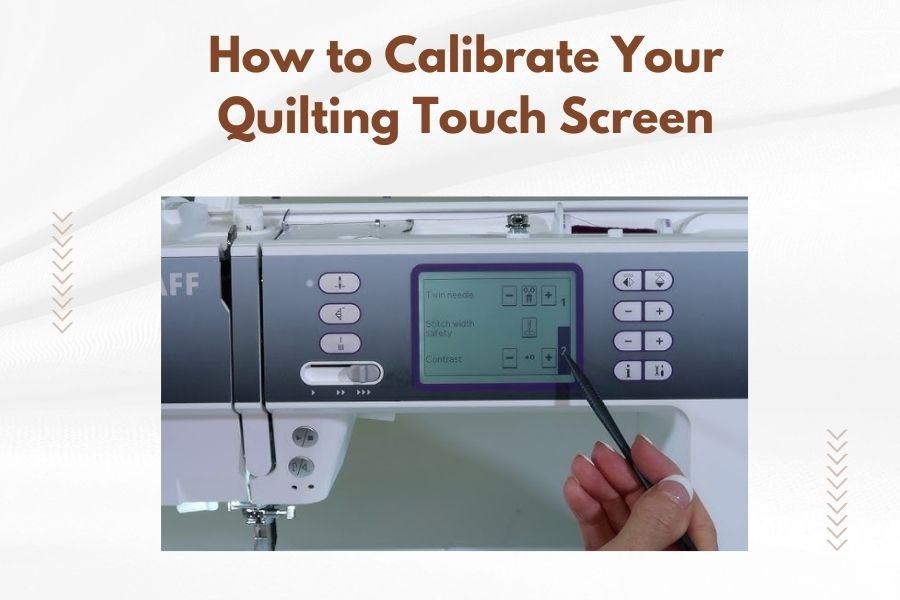
To calibrate your quilting touch screen, access the calibration settings through your machine’s menu system and follow the on-screen prompts to tap specific points on the display.
Most quilting machines require you to touch each corner and center point of the screen in sequence to ensure accurate touch response and proper functionality.
Why Your Quilting Touch Screen Needs Calibration
Your quilting machine’s touch screen can drift over time. Think of it like a compass that slowly loses its true north. When you tap one spot, the machine might think you touched somewhere else entirely.
This happens because of temperature changes, vibration from stitching, or normal wear. I found that many quilters ignore this issue until their machine starts acting up during important projects.
Signs Your Screen Needs Attention
You’ll notice these problems when calibration is off:
- Buttons don’t respond when you tap them
- Wrong menu options activate
- You need to press harder than usual
- The cursor appears far from where you touched
When to Calibrate Your Touch Screen
I found online that most experts recommend calibrating your quilting machine’s touch screen every 3-6 months. But you might need to do it more often if you quilt daily or work in extreme temperatures.
After Moving Your Machine
Did you just move your quilting machine to a new room? The change in environment can throw off the calibration. Temperature and humidity differences affect the screen’s sensitivity.
Following Software Updates
Some machine updates reset calibration settings. Check your screen’s accuracy after any firmware changes.
Pre-Calibration Preparation Steps
Before you start, make sure your workspace is ready. Clean hands and a dust-free screen make all the difference.
Clean Your Screen Properly
Use a microfiber cloth slightly dampened with distilled water. Avoid harsh chemicals that can damage the screen coating. Let it dry completely before calibrating.
What Not to Use
Never use paper towels, ammonia-based cleaners, or abrasive materials. These can scratch the screen or leave residue that affects touch sensitivity.
Check Your Stylus
If your machine came with a stylus, inspect it for damage. A cracked or worn tip can give inaccurate calibration results.
Step-by-Step Calibration Process
Ready to get your screen working perfectly? Here’s how to do it right the first time.
Accessing Calibration Settings
Most quilting machines hide calibration in the settings menu. Look for options labeled “Screen Calibration,” “Touch Calibration,” or “Display Settings.”
On Brother machines, it’s usually under “Settings” then “Machine Settings.” Janome puts it in “Utility Functions.” Check your manual if you can’t find it.
Common Menu Paths
Here are typical navigation routes:
- Settings > Display > Calibrate Screen
- Utilities > Screen > Touch Calibration
- Setup > System > Display Calibration
Following the Calibration Sequence
Once you start calibration, the machine will show you exactly where to touch. Usually, it’s the four corners plus the center point.
Touch each point firmly but gently. Hold for about one second until the machine beeps or moves to the next point. Don’t rush this process.
What If a Point Won’t Register
Sometimes a calibration point seems stuck. Try these fixes:
- Clean that area of the screen again
- Use slightly more pressure
- Try using your fingertip instead of a stylus
- Restart the calibration process
Testing Your Calibration Results
After calibration, test the accuracy before starting your next quilting project. Tap various buttons and menu options to confirm they respond correctly.
Quick Accuracy Test
Try tapping the corners of buttons rather than their centers. If the machine responds properly, your calibration worked.
Troubleshooting Common Calibration Problems
What happens when calibration doesn’t solve your touch screen issues? Don’t panic. Several other factors might be at play.
Screen Still Unresponsive
If calibration didn’t help, you might have a hardware problem. I found that older machines sometimes develop dead zones on their screens.
Environmental Factors
Extreme cold or heat can affect touch screen performance. Make sure your sewing room stays between 60-80°F for best results.
Calibration Keeps Resetting
This usually means the machine’s memory has issues. Try saving your settings after calibration, if your machine has that option.
Maintaining Screen Accuracy Long-Term
Want to keep your touch screen working smoothly between calibrations? These simple habits make a big difference.
Regular Cleaning Schedule
Wipe your screen weekly with a clean microfiber cloth. This prevents oil and dust buildup that can interfere with touch sensitivity.
Protect from Fabric Fibers
Quilting creates lots of lint and thread particles. Keep your screen covered when not in use, especially in dusty sewing rooms.
Brand-Specific Calibration Tips
Different quilting machine brands have unique quirks in their calibration systems. Here’s what I found works best for popular models.
Brother Quilting Machines
Brother screens often need lighter touches during calibration. If you press too hard, the calibration might be off.
Janome Models
Janome machines sometimes require you to hold each calibration point for two seconds instead of one. Be patient with the timing.
Bernina Calibration Notes
Bernina touch screens work best when calibrated at room temperature. Let your machine warm up for 10 minutes before starting.
Advanced Calibration Techniques
For quilters who want perfect screen accuracy, these extra steps can help fine-tune your calibration.
Multiple Calibration Rounds
Some experts suggest running calibration twice in a row for better accuracy. The second round refines the first attempt.
Using Different Touch Methods
Try calibrating with both your finger and the stylus. This gives the machine data about different touch pressures and contact areas.
When to Call for Professional Help
Sometimes calibration problems point to bigger issues that need expert attention. Don’t struggle with a faulty screen when professional help is available.
Persistent Dead Zones
If certain areas of your screen never respond, even after perfect calibration, the touch sensor might be damaged.
Frequent Calibration Loss
Screens that lose calibration weekly might have failing memory chips or loose connections inside the machine.
Conclusion
Calibrating your quilting touch screen is a simple but important maintenance task. By following these steps every few months, you’ll keep your machine responding accurately and avoid frustrating project interruptions. Remember to clean your screen regularly and calibrate after any major changes to your sewing environment. With proper care, your touch screen will serve you well through countless quilting adventures.
How often should I calibrate my quilting machine’s touch screen?
Calibrate your quilting machine’s touch screen every 3-6 months for regular use, or immediately if you notice accuracy problems. Heavy users or those in dusty environments may need monthly calibration.
Can I use any stylus for touch screen calibration?
Use only the stylus that came with your quilting machine or one specifically designed for resistive touch screens. Phone styluses often don’t work properly on quilting machine displays.
What should I do if calibration fails completely?
If calibration won’t complete or keeps failing, restart your machine and try again. If problems persist, contact your dealer as you may have a hardware issue requiring professional repair.
Why does my touch screen work fine after cleaning but poorly later?
Dust, fabric fibers, and skin oils accumulate on touch screens during quilting, affecting sensitivity. Regular cleaning prevents this buildup from interfering with screen accuracy between calibrations.
Is it normal for touch screen accuracy to change with room temperature?
Yes, extreme temperatures can affect touch screen performance temporarily. Most quilting machines work best in rooms between 60-80°F, and accuracy should return to normal once temperature stabilizes.