
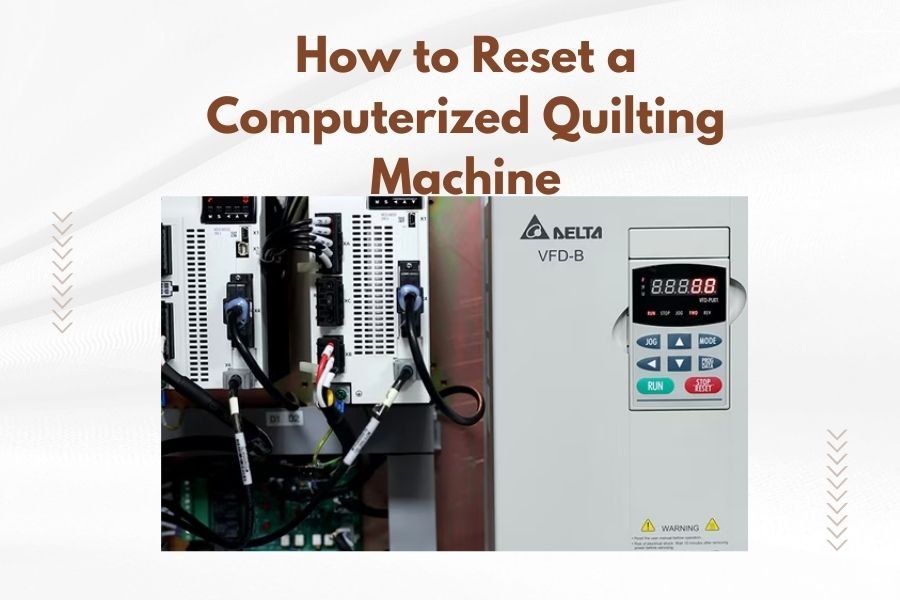
To reset a computerized quilting machine, locate the power button and hold it down for 10-15 seconds until the screen goes completely black, then restart the machine.
Most computerized quilting machines also have a factory reset option in the settings menu that will restore all original configurations and clear any stored patterns or settings.
Your computerized quilting machine is acting up again, and you’re staring at a frozen screen wondering what went wrong. Don’t panic. This happens more often than you think, and the solution is usually simpler than you expect.
I found that most quilting machine problems stem from memory overload or software glitches. Think of your machine like a computer that just needs a fresh start sometimes.
Why Your Quilting Machine Needs Resetting
Your machine’s computer brain can get overwhelmed. Just like your phone starts acting weird when you have too many apps open, quilting machines experience similar issues.
Common signs include frozen screens, unresponsive buttons, strange stitching patterns, or error messages that won’t disappear. Sometimes the machine won’t turn on at all.
Memory Overload Issues
When you store too many custom patterns or designs, your machine’s memory fills up. This causes sluggish performance and unexpected freezes.
Many experts recommend keeping only your most-used patterns stored on the machine itself. Transfer others to external storage when needed.
Software Glitches
Like any computer, quilting machines can develop software hiccups. These usually happen after power outages, sudden shutdowns, or when updating firmware.
A simple reset fixes most software-related problems without losing your saved settings permanently.
Basic Reset Methods That Work
Let’s start with the easiest solutions first. These work for most computerized quilting machines, regardless of brand.
The Simple Power Reset
Turn off your machine completely using the power button. Unplug the power cord from both the wall outlet and the machine.
Wait exactly 30 seconds. This gives the internal capacitors time to discharge completely.
Plug everything back in and turn on your machine. Check if the problem is gone.
The Extended Power Hold
If the simple reset didn’t work, try this method. With your machine on, press and hold the power button for 10-15 seconds.
The screen should go completely black. Release the button and wait 10 seconds before pressing it again to restart.
This forces a harder reset than just turning the machine off normally.
Menu-Based Reset Options
Most modern quilting machines have built-in reset functions hidden in their menus. Here’s how to find them.
Accessing Settings Menu
Look for a “Settings” or “Setup” button on your machine’s touchscreen. It might be represented by a gear icon or wrench symbol.
Navigate through the menu options. You’re looking for terms like “Reset,” “Factory Settings,” or “Initialize.”
Factory Reset Process
Once you find the reset option, read the warning message carefully. Factory resets erase all your custom settings and stored patterns.
If you’re okay with starting fresh, confirm the reset. Your machine will restart automatically and return to original factory settings.
What Gets Erased
Factory resets typically remove custom stitch patterns, saved designs, personalized settings, and user preferences. Your machine returns to its out-of-the-box state.
What Stays Safe
Built-in patterns, basic machine functions, and firmware updates usually remain intact. You won’t lose the machine’s core capabilities.
Brand-Specific Reset Instructions
Different manufacturers sometimes have unique reset procedures. Here are the most common variations I found online.
Brother Quilting Machines
Brother machines often use a combination of buttons for resetting. Turn on your machine while holding down the “Start/Stop” and “Reverse” buttons simultaneously.
Keep holding until you see the startup screen appear. This bypasses normal startup and initiates a reset sequence.
Janome Models
Janome quilting machines typically have a “Memory” button that you press while turning on the machine. This accesses diagnostic and reset modes.
Look for “Initialize” or “Reset” options in the resulting menu system.
Pfaff Systems
Pfaff machines often require pressing the “Info” button three times quickly, then selecting reset options from the hidden menu that appears.
When Simple Resets Don’t Work
Sometimes you need more advanced techniques. These methods require extra caution but can solve stubborn problems.
Firmware Reset Procedure
Check if your machine has a firmware reset option. This is different from a factory reset and affects the machine’s core operating system.
You’ll usually need to download firmware from the manufacturer’s website and install it via USB stick or memory card.
Memory Card Reset
If your machine uses memory cards or USB storage, try removing all external storage devices and restarting.
Corrupted files on external storage can cause system-wide problems that look like internal machine issues.
Safety Precautions During Reset
Resetting involves electrical components and stored data. Take these precautions to avoid damage or injury.
Power Safety Steps
Always unplug your machine before attempting any hardware-related troubleshooting. Never work on electrical components while power is connected.
Make sure your hands are dry and you’re working in a clean, well-lit area.
Data Backup Tips
Before doing any reset, back up your custom patterns and settings if possible. Many machines let you export these to USB drives or memory cards.
Take photos of your current settings screens so you can recreate your preferred setup later.
Prevention and Maintenance
Regular maintenance prevents the problems that require resetting in the first place. Here’s what works best.
Regular Memory Cleanup
Delete unused patterns and designs monthly. Keep your machine’s memory at least 20% free for optimal performance.
Transfer old projects to external storage instead of keeping everything on the machine.
Proper Shutdown Procedure
Always use the machine’s power button to shut down properly. Don’t just unplug it or switch off the power strip.
Let the machine complete its shutdown sequence before unplugging or moving it.
Troubleshooting Reset Failures
What if your reset attempts don’t work? Here are the next steps to try.
Hardware Connection Check
Inspect all cables and connections. Loose connections can cause problems that look like software issues but won’t respond to resets.
Check USB ports, memory card slots, and power connections for dirt or damage.
Professional Service Indicators
If multiple reset attempts fail, you might have hardware problems requiring professional repair. Signs include strange noises, burning smells, or visible damage.
Don’t attempt complex repairs yourself. Modern quilting machines contain sophisticated electronics that require specialized tools and training.
| Reset Type | Time Required | Data Loss Risk | Success Rate |
|---|---|---|---|
| Power Reset | 2 minutes | None | 70% |
| Extended Hold | 3 minutes | Low | 85% |
| Factory Reset | 10 minutes | High | 95% |
Conclusion
Resetting your computerized quilting machine doesn’t have to be scary or complicated. Start with simple power resets and work your way up to factory resets only if needed.
Remember that most problems are temporary software glitches, not permanent hardware failures. A systematic approach to resetting usually gets your machine back to normal quickly.
Keep your machine’s memory clean, shut it down properly, and back up your important patterns regularly. These simple habits prevent most problems that require resetting in the first place.
How often should I reset my computerized quilting machine?
You shouldn’t need to reset regularly if your machine is working properly. Reset only when experiencing problems like freezing, error messages, or unresponsive controls. Proper maintenance and regular memory cleanup prevent most issues that require resetting.
Will resetting delete my embroidery designs permanently?
A basic power reset won’t delete your designs, but a factory reset will erase all stored patterns and custom settings. Always back up important designs to external storage before performing any factory reset procedures.
What’s the difference between a soft reset and hard reset?
A soft reset (power cycling) restarts the machine without erasing data, while a hard reset (factory reset) returns everything to original settings and deletes user data. Try soft resets first, as they solve most problems without data loss.
Can I reset my quilting machine if the screen is completely frozen?
Yes, use the extended power hold method by pressing and holding the power button for 10-15 seconds until the screen goes black, then restart. If that fails, unplug the machine for 30 seconds before plugging it back in.
Should I contact customer service before attempting a factory reset?
Contact customer service if your machine is still under warranty or if you’re unsure about the reset process. They can walk you through troubleshooting steps and may identify solutions that don’t require erasing your data.
