
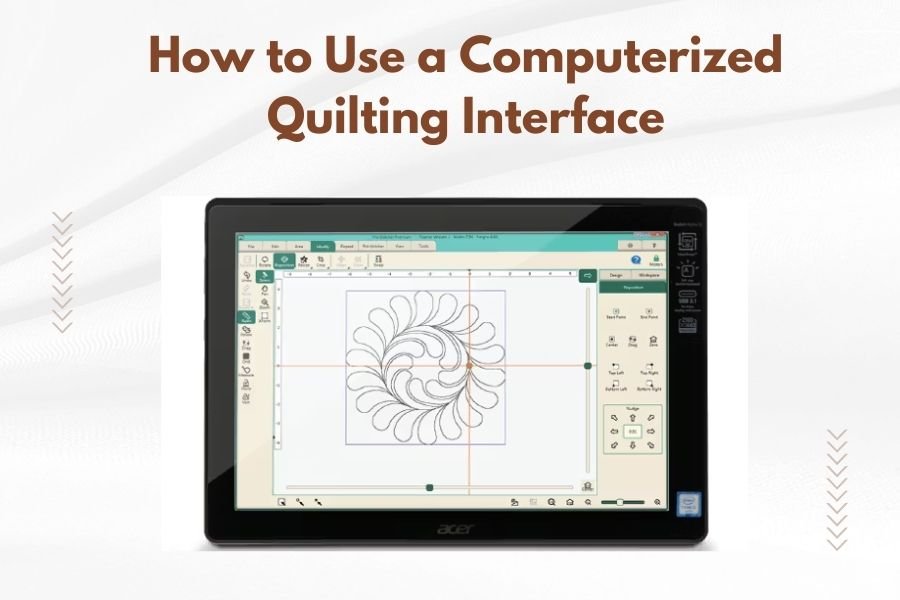
A computerized quilting interface connects you to your machine through a touchscreen or software that controls stitching patterns, speed, and fabric positioning automatically.
You’ll navigate menus to select designs, adjust settings, and monitor your quilting progress while the machine handles precise movements for professional results.
Understanding Your Computerized Quilting Interface
Think of your quilting interface as the brain of your machine. It translates your creative ideas into precise stitches. Most modern machines come with either built-in touchscreens or connect to computer software.
The interface displays pattern libraries, editing tools, and machine controls all in one place. You can preview designs, resize them, and even combine multiple patterns before starting your project.
Types of Quilting Interfaces
Touchscreen interfaces sit directly on your machine. They’re user-friendly and don’t require a separate computer. You tap, swipe, and pinch to zoom just like on your phone.
Computer-based interfaces offer more power. They run on your laptop or tablet and connect via USB or WiFi. These systems typically include larger pattern libraries and advanced editing features.
Setting Up Your Interface for the First Time
Start by powering on your machine and letting the interface boot up. This usually takes 30-60 seconds. You’ll see a home screen with main menu options.
Check your machine’s calibration settings first. Go to the setup or maintenance menu and run any calibration routines. This ensures accurate stitching from day one.
Connecting to WiFi and Updates
Most newer interfaces connect to WiFi for pattern downloads and software updates. Look for a WiFi or network icon in your settings menu.
Enable automatic updates if available. Manufacturers regularly release new patterns and bug fixes that improve your quilting experience.
Importing Your First Patterns
Your machine comes with built-in designs, but you can add more. Download patterns from manufacturer websites or third-party designers.
Common file formats include .qli, .pes, and .dst files. Copy these to a USB drive and plug it into your machine, or transfer them via WiFi if supported.
Navigating the Main Menu System
The home screen typically shows four main sections: Pattern Library, Settings, File Management, and Machine Status. Each section opens to reveal more specific options.
Pattern Library contains all your available designs organized by category. Settings controls machine behavior like speed and tension. File Management handles importing and organizing patterns.
Pattern Library Organization
Patterns are usually sorted into folders like Floral, Geometric, Border, and Custom. Some interfaces let you create your own folders for better organization.
Use the search function to find specific patterns quickly. Most systems search by name, designer, or keywords you’ve added.
Understanding File Management
Your interface stores patterns in internal memory. Check available space regularly, especially if you download many large designs.
Delete unused patterns to free up space. Most interfaces let you archive patterns to external storage while keeping them accessible.
Loading and Positioning Your First Design
Select a simple pattern for your first project. Start with something small, like a 4-inch block design, to get comfortable with the process.
The interface will show a preview of your selected pattern. You can see its dimensions, estimated stitching time, and thread color suggestions.
Design Placement on Your Quilt
Position your quilt under the machine head where you want the design to start. Many interfaces show a crosshair or positioning guide on screen.
Use the machine’s positioning controls to move the head to your exact starting point. Mark this spot with a removable fabric marker if needed.
Setting Design Parameters
Adjust your design size using the scaling tools. You can typically resize from 50% to 200% of the original size without quality loss.
Rotate designs in 90-degree increments or free-rotate to any angle. Some interfaces offer mirror and flip options for design variations.
Adjusting Machine Settings Through the Interface
Your quilting speed affects both quality and your comfort level. Start slow, around 50% of maximum speed, until you’re confident with the machine’s movements.
Thread tension settings appear in your interface’s machine controls. Most patterns work well with medium tension, but delicate fabrics may need adjustments.
Speed and Movement Controls
Speed controls usually offer preset options like Slow, Medium, and Fast, plus a custom slider. Dense patterns need slower speeds for accuracy.
Movement sensitivity affects how the machine responds to direction changes. Higher sensitivity gives crisp corners but may cause jerky motion on curves.
Thread and Bobbin Monitoring
Many interfaces display thread and bobbin levels. Set up low-thread alerts to avoid running out mid-pattern.
Some systems pause automatically when thread breaks or runs out. This prevents damage to your quilt and saves your progress.
Monitoring Your Quilting Progress
The interface shows real-time progress as a percentage and estimated time remaining. This helps you plan breaks and monitor your workflow.
A visual progress indicator highlights completed sections of your pattern. You can see exactly where the machine is working at any moment.
Pause and Resume Functions
Use the pause button for thread changes or breaks. The machine stops at a safe point and remembers its position.
Resume quilting by pressing the start button again. The machine returns to the exact spot where it paused, maintaining perfect alignment.
Handling Interruptions
If you need to stop mid-pattern, save your progress first. Most interfaces automatically save every few minutes as backup.
Power outages don’t have to ruin your work. Modern interfaces remember your position and can restart from the last saved point.
Editing Designs Within Your Interface
Basic editing tools let you modify patterns without separate software. Resize, rotate, and combine elements to create custom designs.
Copy and paste functions help you repeat elements across your quilt. Create borders by copying a single motif and placing it at regular intervals.
Combining Multiple Patterns
Advanced interfaces allow pattern layering. Combine a background fill with decorative elements for complex designs.
Adjust the stitch order when combining patterns. Usually, background elements should stitch first, followed by decorative details.
Creating Custom Spacing
Set precise spacing between repeated patterns using the measurement tools. This ensures consistent results across your entire quilt.
Grid snap features help align multiple elements perfectly. Enable snap-to-grid for precise geometric layouts.
Troubleshooting Common Interface Issues
Frozen screens happen occasionally. Try a soft reset by holding the power button for 10 seconds, then restarting the machine.
If patterns won’t load, check your file format compatibility. Convert unsupported files using the manufacturer’s software or online converters.
Calibration Problems
Poor stitch quality often indicates calibration issues. Run the built-in calibration routine from your maintenance menu.
Check that your quilting frame is level and stable. An uneven surface can cause positioning errors that affect stitch accuracy.
Memory and Storage Issues
Low memory warnings appear when your interface storage is nearly full. Delete unused patterns or transfer them to external storage.
Slow performance often improves after clearing cached files. Look for a “Clear Cache” option in your maintenance settings.
Software Update Problems
Failed updates can leave your interface unstable. Contact your manufacturer’s support team if updates don’t install properly.
Keep a backup of your patterns before major updates. Some updates might reset your custom settings or delete imported patterns.
Maximizing Your Interface’s Potential
Explore your interface’s advanced features gradually. Try one new tool per project rather than overwhelming yourself with options.
Join online communities focused on your machine brand. Other quilters share tips, troubleshooting advice, and custom patterns regularly.
Pattern Organization Strategies
Create folders by project or theme for easy pattern finding. Name your custom folders clearly, like “Christmas 2024” or “Baby Quilts.”
Rate or favorite your most-used patterns. This creates quick access shortcuts on your home screen.
Maintenance Through Your Interface
Set maintenance reminders for regular cleaning and oiling. Your interface can track usage hours and alert you when service is due.
Review your machine’s diagnostic reports monthly. These reports help identify potential issues before they become serious problems.
Conclusion
Mastering your computerized quilting interface opens up endless creative possibilities. Start with simple projects and gradually explore advanced features as your confidence grows. Remember that every expert quilter started as a beginner, and your interface is designed to help you succeed.
Take time to practice with different patterns and settings. The more comfortable you become with your interface, the more you’ll enjoy the quilting process. Your investment in learning these digital tools will pay dividends in beautiful, precisely stitched quilts for years to come.
How long does it take to learn a computerized quilting interface?
Most quilters become comfortable with basic interface functions within 2-3 weeks of regular use. Advanced features may take several months to master, but you can create beautiful quilts while still learning.
Can I use patterns from different manufacturers on my machine?
Pattern compatibility depends on your machine’s supported file formats. Most interfaces accept common formats like .dst and .pes, but always check your manual for specific compatibility information.
What happens if my interface screen stops responding?
Try a soft reset by holding the power button for 10 seconds, then restart. If the problem persists, check for loose connections and contact your manufacturer’s technical support team.
How much memory do I need for storing quilting patterns?
Pattern storage needs vary widely. Simple designs use 50-100KB each, while complex patterns can require 1-5MB or more. Most modern interfaces include 1-4GB of storage, enough for thousands of patterns.
Should I update my interface software automatically?
Automatic updates are generally recommended for bug fixes and security improvements. Back up your patterns first, and consider postponing updates during important projects to avoid potential disruptions.
